How to get your website to show up on Google
By Michael Nefedov, noetio · Updated 21 October 2026
To get your website to show up on Google, Google has to find it, add it to its index, then choose it for a search. The 7 steps below check each one, in order.
Short answer
- Search
site:yourdomain.comon Google. No results means Google hasn't indexed your site yet. - Add your site to Google Search Console and send your sitemap. Both are free.
- Indexed is not the same as showing up. You need a page that answers the search. Expect days to weeks.
Don't know where to start? Start here
Google usually adds sites by itself. In its own words:
“Google automatically looks for sites to add to our index; you usually don't even need to do anything except post your site on the web.”
If your site isn't there, something is in the way, or Google hasn't got to it yet. Most people get stuck because they don't know which of the three (found, indexed, chosen) is failing.
- Steps 1 to 5 find out what is in the way.
- Steps 6 and 7 make you show up for real searches.
Step 1: check if Google already knows your site
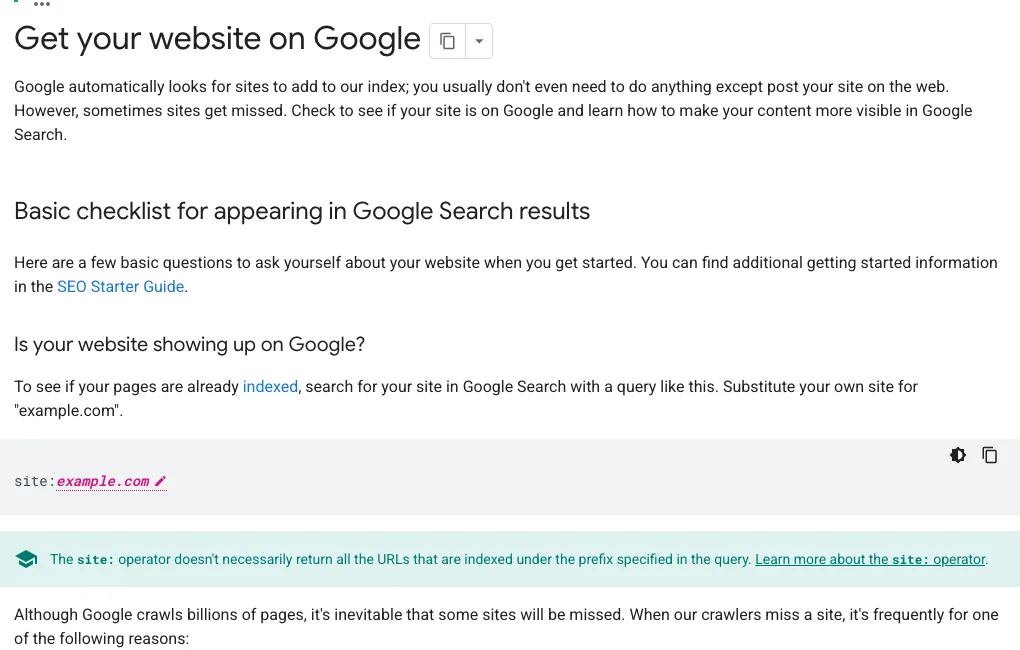
Type site:yourdomain.com into Google to see if your pages are indexed. Use your own domain. Google's SEO starter guide: “If you see results pointing to your site, you're in the index.”
You see your pages
Google knows your site. Your problem is ranking: go to step 7.
You see nothing
Google hasn't indexed it yet. Go through steps 2 to 5.
One limit, from Google's page: “The site: operator doesn't necessarily return all the URLs that are indexed under the prefix specified in the query.” Use Search Console (step 2) for the full picture.
Step 2: add your site to Google Search Console
Search Console is Google's free tool that shows how Google sees your site. Per Google, it helps you monitor and troubleshoot your site's presence in Search. It shows index coverage, alerts about issues, and the queries that bring users to your site (Google). You add your site as one of two property types (Google) and prove it's yours (Google):
| Property type | Covers | How you verify |
|---|---|---|
| Domain (yourdomain.com) | The whole domain: all subdomains, http and https | A DNS record at your domain provider |
| URL prefix (https://www.yourdomain.com) | Only URLs that start with that address | An HTML tag or file on your site, Google Analytics or Tag Manager |
Source: Google, Add a website or platform property to Search Console and Verify your site ownership, read 21 October 2026.
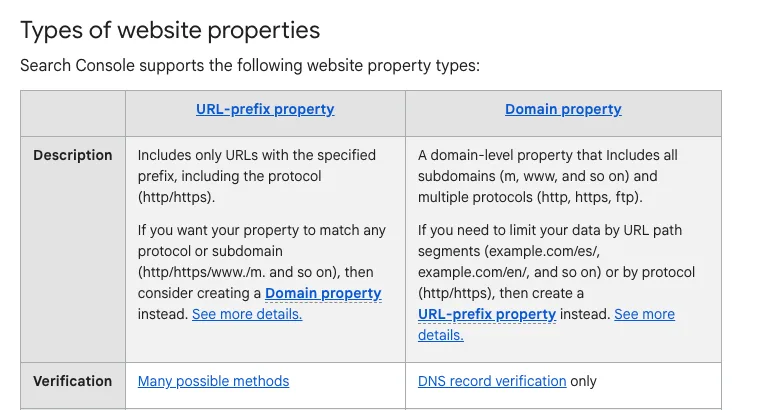
Pick Domain if you can edit your DNS. It covers everything with one check. Then add the site to Bing Webmaster Tools too: it can import your site from Search Console, already verified.
Step 3: send Google your sitemap
A sitemap is a file that lists the pages you want in Google. Google says that on a CMS such as WordPress, Wix or Blogger it is likely a sitemap already exists (Google). Try opening yourdomain.com/sitemap.xml. Then send it in one of two ways:
- In Search Console, under Sitemaps.
- Or add this line to your robots.txt (Google):
Sitemap: https://yourdomain.com/sitemap.xml
It helps, but it's not an order. Google: “Keep in mind that submitting a sitemap is merely a hint: it doesn't guarantee that Google will download the sitemap or use the sitemap for crawling URLs on the site.”
Step 4: ask Google to index your main pages
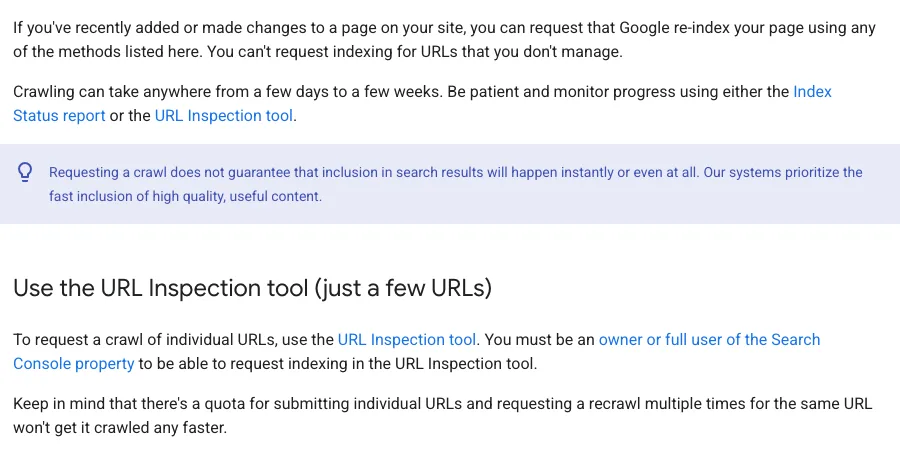
Request indexing once for your homepage and the 3 to 5 pages that matter most. (The 3 to 5 is our rule of thumb. Google only says there is a quota.) In Search Console, paste a page's address into the URL Inspection bar at the top, then click Request indexing. Two things Google says about it (source):
Once is enough
There's a quota, and asking again for the same page won't get it crawled faster.
No guarantee
A request doesn't promise the page will be shown, now or later.
Step 5: fix what stops Google
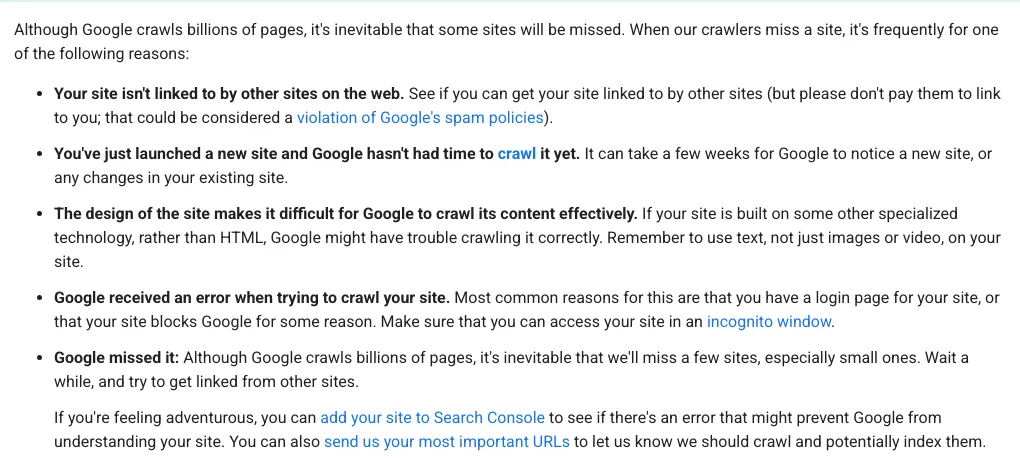
Google lists 5 reasons a site is missing (source). Here they are in Google's words, with how to check and fix each:
| Google's reason | How to check | Fix |
|---|---|---|
| “Your site isn't linked to by other sites on the web.” | Search your brand name. Count the other sites that mention you. | Get listed where your business already belongs (step 6). Never pay for links. |
| “You've just launched a new site and Google hasn't had time to crawl it yet.” | Search Console: URL Inspection says “URL is unknown to Google”. | Send the sitemap, request indexing for your main pages, then wait. |
| “The design of the site makes it difficult for Google to crawl its content effectively.” | Is your main text real text, or part of an image or video? | Put the words people search for in text on the page. |
| “Google received an error when trying to crawl your site.” | Open the site in an incognito window. Does it ask for a login? | Remove the login or the block. Look for a noindex tag and for rules in robots.txt. |
| “Google missed it.” | Everything above is fine and the site is still missing. | Wait a while and get links from other sites. |
One trap: a page with <meta name="robots" content="noindex"> tells Google not to show it. WordPress puts anoindex,nofollow robots tag in the page head when “Discourage search engines from indexing this site” is ticked, so make sure it isn't. And Google can only see that tag if robots.txt doesn't block the page (Google).
Step 6: get linked from other sites
Links are how Google finds you. “Google primarily finds pages through links from other pages it already crawled. In many cases, these are other websites that are linking to your pages” (Google). Start with places your business already belongs:
- 1Your own profiles: LinkedIn, X, YouTube, GitHub, Product Hunt.
- 2Partners, suppliers and customers who list who they work with.
- 3Directories and associations in your industry or your city.
- 4Answers on forums and communities where your buyers ask questions.
Don't buy links. Google: “please don't pay them to link to you; that could be considered a violation of Google's spam policies” (source). Its link spam policylists “Buying or selling links for ranking purposes”.
Step 7: make a page for each thing people search
Indexed is not the same as found. For each search, Google shows the pages that match it best. If buyers search “invoice software for freelancers” and your homepage says “Simple money tools”, nothing on your site matches. Google's advice: “Think about the words that a user might search for to find a piece of your content” (source).
Rules that follow from it (our judgement, not Google's wording):
One question, one page
Each page answers one thing your buyers search for.
Their words in the title
Use the words people type, at the start of the title and the main heading.
The answer at the top
The first 2 sentences answer the question. Details come after.
Local business? If you serve customers at a place or in an area, create a Google Business Profile. Google: “When you add and verify your Business Profile, customers can find your business on Search and Maps.”
Want to show up in ChatGPT and Google's AI answers too? For Google it's mostly the same work. See SEO vs GEO for what's different.
How long it takes
Expect days to weeks for indexing, and longer for ranking.
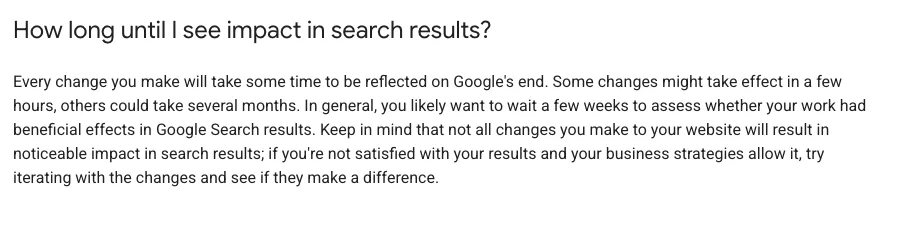
Google says some changes “might take effect in a few hours, others could take several months”, and suggests waiting a few weeks before you judge the result (source). And no money speeds it up: “Google doesn't accept payment to crawl a site more frequently, or rank it higher” (source).
Steps 6 and 7 are ongoing work: links and one page per search. SEO automation can take part of that off your hands. For a week-by-week plan, read SEO for startups. To audit a site that is already live, use the technical SEO audit checklist.
Sources
All read on 21 October 2026. Google dates are the “last updated” line on each page.
- Google Search Central, Get your website on Google (2025-12-10): the opening quote, the five reasons, the site: operator, the link-buying warning, “a few weeks”.
- Google Search Central, SEO Starter Guide: The Basics (2025-12-10): “you're in the index”, how Google finds pages, search words, how long changes take.
- Google Search Central, In-Depth Guide to How Google Search Works (2025-12-18): no payment to crawl or rank.
- Google Search Central, Ask Google to Recrawl Your Website (2025-12-10): quota, days to weeks.
- Google Search Central, Build and Submit a Sitemap (2026-07-08): sitemap is a hint, the robots.txt line, CMS sitemaps.
- Google Search Central, Block Search Indexing with noindex (2025-12-10): robots.txt must not block the page for noindex to work.
- Google Search Central, Spam Policies for Google Web Search, link spam (2026-08-28).
- Google Search Central, Google Search Essentials (2025-12-10): “Appearing in Google Search results is free.”
- Google Search Console Help, Add a website or platform property, Verify your site ownership, URL Inspection tool and About Search Console (“a free service”); plus the Search Console overview.
- Google Business Profile Help, Add or claim your Business Profile.
- WordPress.org Documentation, Settings Reading screen: the “Discourage search engines” option and the noindex tag it adds.
- Bing Webmaster Blog, Import sites from Search Console to Bing Webmaster Tools (page shows “Updated June, 2025”).
Questions
Yes. Google says appearing in Google Search results is free, and Google calls Search Console a free service. Google Ads are paid, but they are ads, not search results.
A few days to a few weeks, according to Google. Asking again for the same page does not make it faster.
Google names 5 reasons: no other sites link to yours, the site is too new, the design makes the content hard to crawl, Google got an error such as a login page or a block, or Google simply missed it. Search Console's URL Inspection tool tells you which one it is for a page.
No. Google finds most sites by itself, mainly through links from pages it already knows. A sitemap and Request indexing in Search Console only help Google find your pages sooner. Neither one guarantees that a page is shown.
More guides
- SEO for SaaS: A Plain Plan for Founders (2026)
- SEO for Startups: Your First 30 Days, Week by Week
- Agentic SEO: what it is and how it works
- SEO vs GEO: what's different and what stays the same
Turn your next topic into a useful page
Compass reads your website, helps you plan relevant topics and creates sourced article drafts. Review and approve the work, then send it to a connected CMS or export it.
Written by Michael Nefedov, founder of noetio. Updated 21 October 2026.